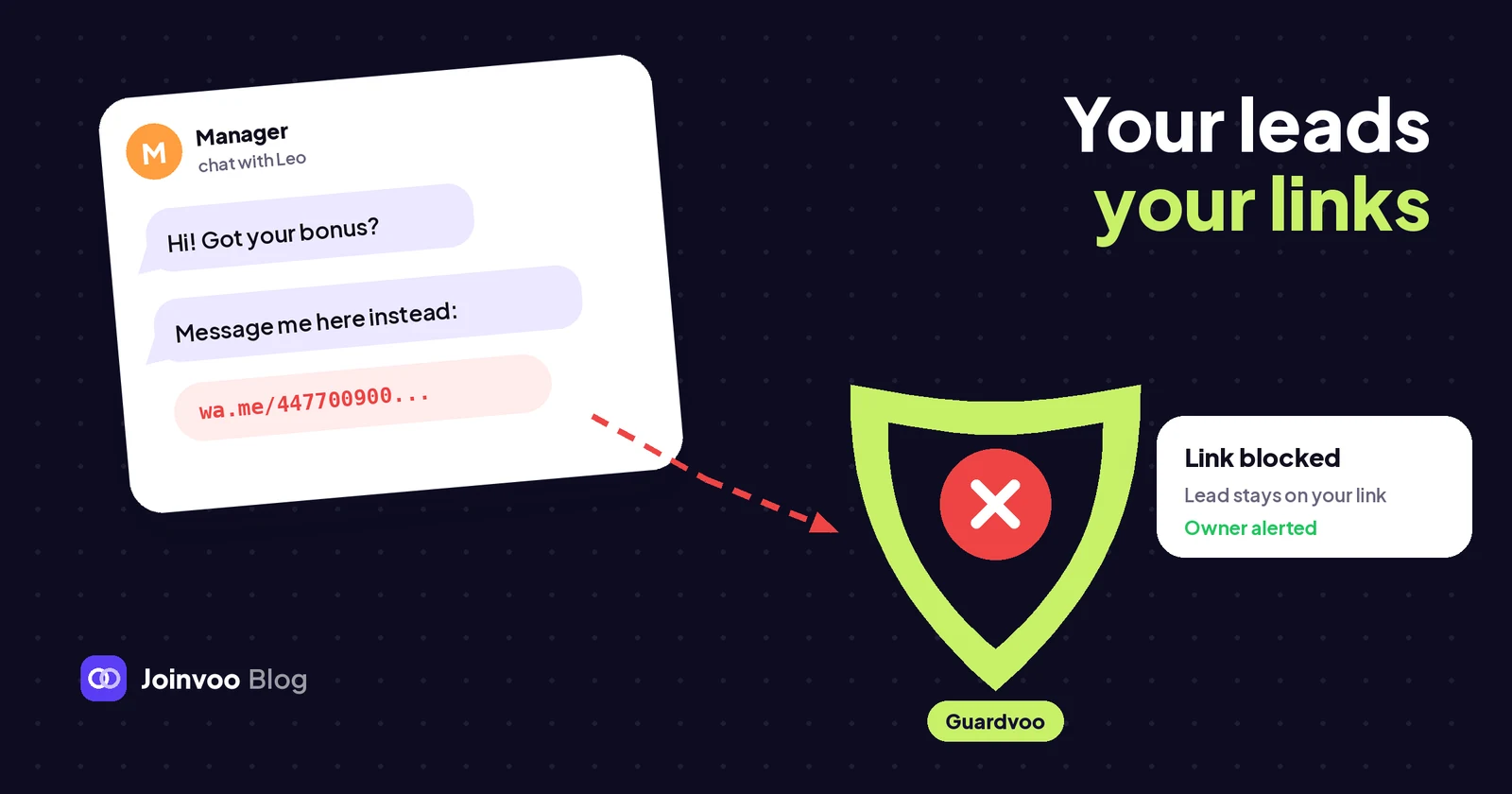
If managers chat with your leads on Telegram, someone will eventually be tempted to keep a few leads for themselves. You pay for every conversation, and the person typing the replies holds the last step between your ad money and your commission.
How leads leak out of a chat
Diversion is rarely obvious. The patterns I see most:
- The tracking ID swap. The link goes to the same broker or bookmaker you promote, but with someone else’s affiliate ID, or with yours removed. The lead signs up happily. The commission goes to someone else. On your side it just looks like a lead who never registered.
- The side door. A phone number, a WhatsApp link, an email address. Once the chat moves there, you can’t see it and you can’t track it.
- The outside username. “Add my other account, @something.” Now the lead talks to your manager on an account you don’t control.
- The private-chat line. “Message me privately”, “DM me on”, “text me on”. Short phrases that come right before a lead disappears.
- The unknown link. A different program, or a short link that hides where it really goes.
The cost isn’t only the lost deposit. Your numbers say the funnel is weak.
What Guardvoo does
Guardvoo is a Joinvoo add-on, $19 a month, that keeps every lead yours. It reads what your managers send to leads, checks it against your rules, and acts.
It looks in the chats Joinvoo already sees:
- Your managers’ Telegram chats, connected to your Joinvoo bot through Telegram Business. That includes messages a manager types on their own phone, not only ones sent from the dashboard.
- Messages your team sends from Team inbox. These are checked before they go out.
- Groups and channel comments where your Joinvoo bot is an admin.
It already knows what’s yours: your Joinvoo and offer links, websites, channels, bots, managers’ usernames and invite links. You add anything else on the Allowed tab: websites, your own affiliate links (Guardvoo learns your ID from them), usernames, and phone numbers like your support line.
The rules
| Rule | What it catches |
|---|---|
| Someone else’s tracking ID | Your offer site, but with another affiliate’s ID (aff, ref, btag, sub and so on), or with yours left out |
| Phone numbers and other messengers | Phone numbers, WhatsApp, Viber, Signal, Discord links, email addresses |
| Usernames and Telegram links | An @username, t.me link or invite link that isn’t yours |
| Words you watch for | Phrases like “message me privately” or “DM me on”. It starts with a set in your language and English, and you add your own |
| Links to other sites | Any site that isn’t on your list, including short links that hide where they go |
| Fake admin accounts | Someone in your groups or channel comments whose name or username copies yours or an admin’s |
What happens, rule by rule
For each rule you pick one action:
- Watch only. It’s recorded so you can see it. Nothing else happens.
- Warn manager. The message stays, and the manager is told privately that it broke a team rule.
- Delete. The message is removed from the chat. From Team inbox, it’s simply not sent.
- Replace with my link. The message is deleted and your own link goes to the lead instead. For someone else’s tracking ID, it uses your link for that same site.
Alert me is a separate switch per rule. The starting setup is sensible: a swapped tracking ID gets replaced with your link, phone numbers, usernames and watched words get deleted, and unknown links get a warning, because most of them are harmless, like a news page or a video.
Alerts with proof
Guardvoo has its own Telegram bot, so security alerts never get lost among your sales alerts. Each alert shows who sent the message, which lead, the message itself with the problem part in bold, the rule, what was done and the time. Under it: Open chat, Mark as OK and Delete now.
Mark as OK is how it learns: one tap adds what it found to your allowed list.
If the same manager breaks the same rule again within 15 minutes, it’s added to the first alert instead of filling your phone. Every alert is also in your Joinvoo inbox, and in Slack or Discord if you connected them.
Track this in Joinvoo, free.Every join, start and deposit matched to the ad that drove it. First 500 joins on us.Start freeThe first 7 days only watch
For the first week Guardvoo acts on nothing. Every rule only watches, and the page shows what it would have done. You get a notice the day before it starts acting.
That week shows you how big your problem is, and whether your allowed list is complete. Fix false alarms with Mark as OK, then tap Start acting now, or let the week run out.
Set it up
- Open More → Guardvoo and tap Start Guardvoo. It’s $19 a month from your credits. You can stop any time.
- Step 1: Connect Guardvoo alerts. Tap Get Guardvoo alerts on Telegram, then press Start. You can add a trusted manager to get alerts too.
- On Allowed, paste one of your own affiliate links for each offer, and add any websites, usernames or numbers your team is allowed to share.
- On Rules, check the action for each rule. Use Try a message to test one before it matters: paste a message and see what Guardvoo would catch.
- Ask each manager to let your bot delete messages: Telegram → Settings → Telegram Business → Chatbots, tap your bot, and turn on the options to delete messages. The Team tab shows who has done it.
- For groups and channel comments, make your Joinvoo bot an admin with the Delete messages right (and Ban users to remove fake admins). Groups and comments shows the status of each one.
Guardvoo needs at least one manager chat connected under Channels first, so there’s something to watch.
What it can’t do
- It only sees chats connected to Joinvoo. If a manager uses a second Telegram account, a personal phone, or WhatsApp you never connected, Guardvoo can’t see it. Once a lead has moved somewhere else, no tool can follow.
- Delete needs permission. In managers’ chats, Telegram only lets your bot delete if the manager allowed it in Telegram Business. Without that, Guardvoo alerts you but can’t delete, and the page says so.
- Replace has a time limit in managers’ chats. Telegram lets a bot reply within 24 hours of the lead’s last message, and the bot needs the “Reply to messages” right too. In groups, Replace always works.
- It can’t read private chats. It spots fake admins by their name in the group. Tell members: admins never message first.
- It checks what managers send, not what leads send. A lead can still share their own number. That’s their choice.
- It can be wrong. A link it doesn’t know is flagged until you allow it. That’s why the first week only watches, and why Mark as OK exists.
- It only keeps what it flags. Flagged messages are stored encrypted for 90 days. Your team’s other messages are never stored by Guardvoo.
The point
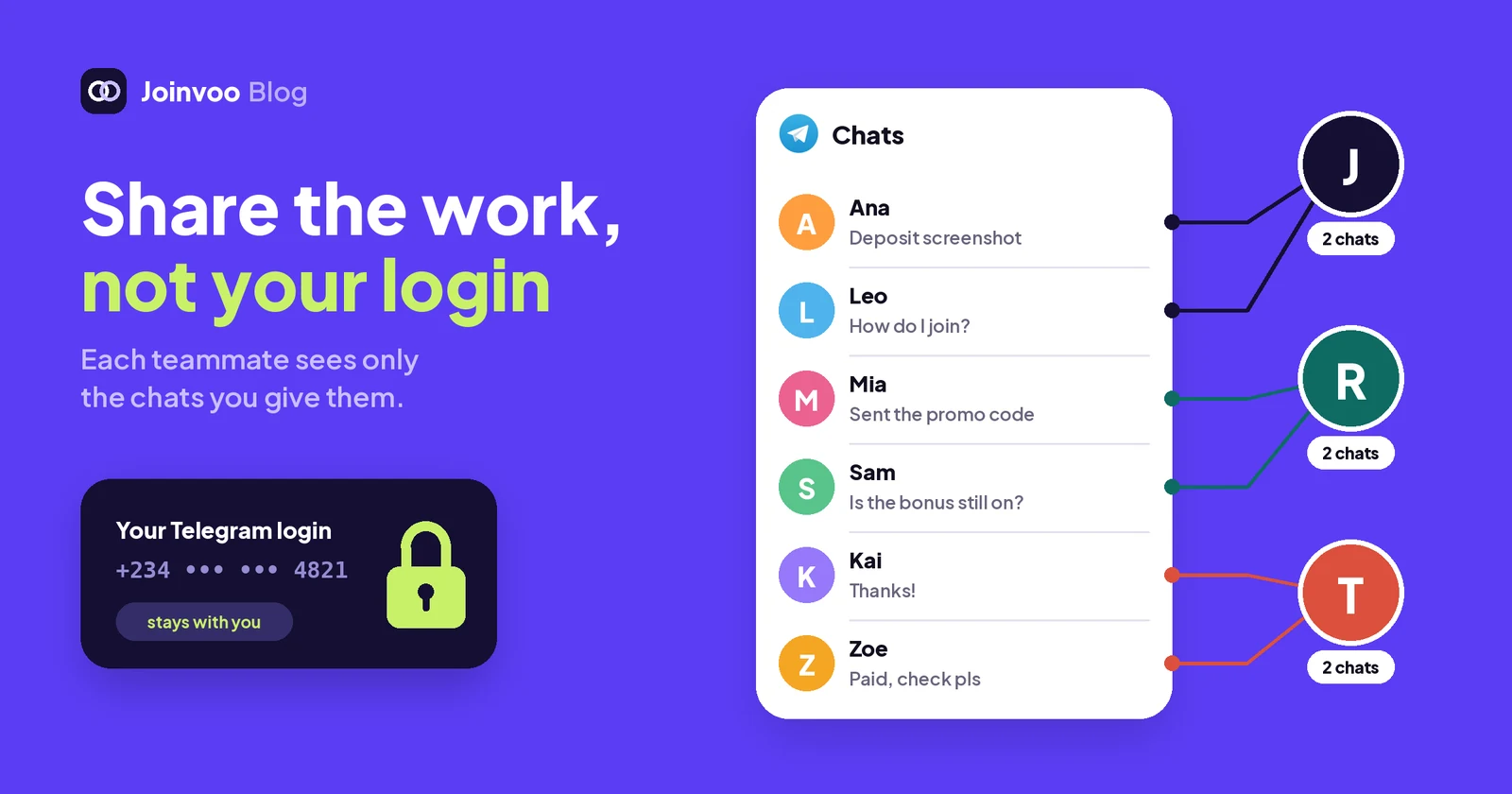
You can’t watch every chat yourself. Guardvoo checks what your managers send, deals with what breaks your rules, and shows you the proof. Start it this week and let the first 7 days tell you what’s happening. If you also want to control which chats each person sees in the first place, read Share the work, not your Telegram login: give each teammate the chats they need.